On this page
- 01Quick reference: which method gives which result
- 02Can PowerPoint open a PDF?
- 03How to insert a PDF into PowerPoint
- 04How to convert a PDF to PowerPoint with Adobe Acrobat
- 05How to turn a PDF into a PowerPoint presentation with AI
- 06Which method should you use?
- 07Check the converted presentation before you use it
- 08Frequently asked questions
There are three ways to convert a PDF to PowerPoint. To show a PDF on a slide, insert it with Insert > Object or Insert > Screenshot. To get editable slides that look like the PDF pages, convert it with Adobe Acrobat, which turns each page into a slide. To turn a report into an actual presentation, rebuild the slides from its content with an AI tool.
Quick reference: which method gives which result
- Insert the PDF on a slide: the PDF stays a PDF (an icon, a preview image or a clipped picture). Nothing becomes editable. Best for showing a document or a page.
- Convert page by page (Acrobat and similar converters): one PDF page becomes one slide, with text and shapes as editable objects. The layout of the PDF is kept. Best when the PDF already is a slide deck, for example one exported from PowerPoint.
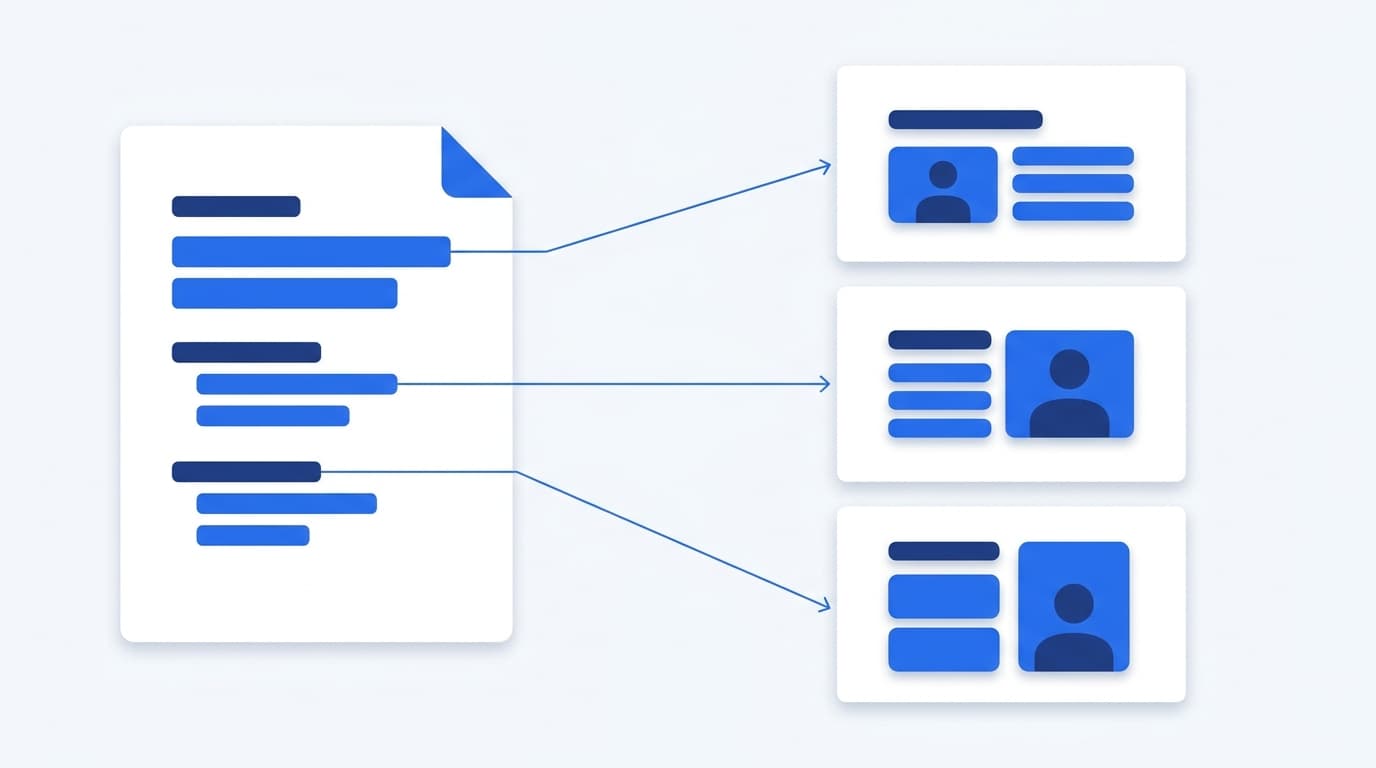
- Rebuild from the content (AI): the tool reads the text, plans a new outline and writes slides with titles and bullets. The original layout is not kept. Best for reports, papers and handouts that were never slides.
Can PowerPoint open a PDF?
PowerPoint cannot open a PDF as a presentation. Microsoft’s PowerPoint help documents inserting PDF content into slides, not opening a PDF file as a deck (Microsoft Support). If you go to File > Open and pick a PDF, you are not given a converted presentation.
Microsoft Word, however, can open a PDF: Word makes an editable copy of the document and leaves the original PDF unchanged (Edit a PDF in Word). Microsoft notes that this works best with documents that are mostly text, and the result may not look exactly like the PDF. Once the content is in Word, you can apply heading styles and send the outline to PowerPoint, as explained in our guide to converting Word to PowerPoint.
How to insert a PDF into PowerPoint
Microsoft documents these methods for PowerPoint for Microsoft 365, 2024, 2021, 2019 and 2016 on Windows. Microsoft states that inserting PDF content is not possible in PowerPoint for the web. Its page does not cover the Mac version, so check the menus there before relying on these steps (Microsoft Support).
Insert a whole PDF as an object
- Close the PDF file. Microsoft says the file must not be open, otherwise you may get an error.
- Select the slide, then go to Insert > Object.
- Choose Create from file, select Browse, pick the PDF and select OK.
The PDF appears on the slide as an image of its first page; Microsoft warns that its quality is reduced. Double-click it in Normal view to open the full PDF. To open it during a slide show, select it, go to Insert > Links > Action, and on the Mouse Click tab choose Object action > Open.
Insert one PDF page or area as a picture
- Open the PDF and make sure it is the last window you used before switching to PowerPoint.
- In PowerPoint, select the slide and go to Insert > Screenshot.
- Choose Screen Clipping, then drag a box around the part of the PDF you want.
The clip becomes a picture you can resize and crop. Text in the picture cannot be edited. Zoom the PDF before clipping so the picture stays sharp on a projector.
How to convert a PDF to PowerPoint with Adobe Acrobat
Adobe Acrobat converts each PDF page into a PowerPoint slide. In the desktop app, Adobe’s help describes these steps: open the PDF, select Convert (labeled Export a PDF in some versions), choose Microsoft PowerPoint, then Convert to PPTX, and save the file. If the PDF contains scanned text, Acrobat runs text recognition (OCR) automatically (Adobe Help). Menu names vary between Acrobat versions, so look for the Convert or Export tool if your screen differs.
Exporting to PowerPoint in the desktop app requires a paid Acrobat plan; compare the editions on Adobe’s pricing page. Adobe also offers an online converter that it describes as free: you select a file, it converts automatically, and you download the .pptx. Adobe says files are deleted from its servers unless you sign in to save them (Adobe online converter).
What to expect from any page-by-page converter:
- The structure stays the PDF’s structure. A 40-page report becomes 40 slides of dense text, not a presentation.
- Text may be split into many boxes. A PDF stores positioned text, not slide titles and bullet placeholders, so check titles, lists and tables after conversion.
- Fonts can change if the original fonts are not installed on your computer.
- Charts may become pictures rather than editable charts, depending on how the PDF was made.
This method is the right choice when the PDF was a presentation to begin with and you need to edit a few words, or when the exact layout matters, such as a poster or a designed handout.
How to turn a PDF into a PowerPoint presentation with AI
When the PDF is a report, a research paper, a policy or course notes, a page-by-page conversion keeps the wrong structure. The better result is a new deck that summarizes the content: one idea per slide, short titles, bullets instead of paragraphs. That is what AI presentation tools do.
Three examples of how this works today:
- Microsoft Copilot in PowerPoint can create a presentation from a file. Microsoft announced in June 2025 that, in addition to Word files, users with an enterprise Copilot license can reference PDF and TXT files stored in OneDrive or SharePoint (Microsoft 365 Insider blog).
- Gamma imports PDF, .docx and .pptx files and exports to PPTX; on the free plan, exports carry a “Made by Gamma” badge (Gamma Help Center).
- Prezto accepts a PDF or Word file up to 20 MB, or pasted text, and produces a native, editable .pptx with 3 to 30 slides. Prezto reads the PDF’s text layer, so a scanned PDF needs OCR first, and it does not reproduce the original layout. You can try it with the PDF to PowerPoint tool; the preview is free without an account.
Our comparison of the best AI presentation makers for PDF and Word files covers more tools, their accepted files and what each one requires.
Which method should you use?
- You want to show a contract, a form or a page during a talk: insert the PDF as an object or a screenshot.
- You received a deck as a PDF and need to change a few words: convert it page by page with Acrobat or another converter.
- You have a report, thesis or paper and need slides for a meeting or a class: rebuild the presentation from its content with an AI tool, then edit.
- The PDF is a scan: run OCR first (Acrobat does it during conversion), or retype the key passages and paste the text.
- You need a summary slide for decision-makers: after rebuilding, add an executive summary slide at the start.
Check the converted presentation before you use it
Whatever the method, open the .pptx and check it as a presentation, not as a file:
- Read only the slide titles. They should tell the story in order.
- Compare every number with the PDF: totals, dates, units, percentages.
- Look for orphan text boxes and lines broken in the middle of a sentence.
- Rebuild key charts if they came through as pictures and you need to update them.
- Check sources and rights. Converting someone else’s PDF does not give you the right to present its images or text without credit.
Frequently asked questions
How do I convert a PDF to PowerPoint for free?
Adobe offers an online PDF to PPT converter that it describes as free: upload the PDF and download the .pptx, which keeps one slide per PDF page. To get a summarized presentation instead, AI tools such as Prezto let you preview the generated slides for free; downloading the file may require an account or a plan, so check each tool’s pricing page.
How do I insert a PDF into PowerPoint?
On Windows, close the PDF, then in PowerPoint go to Insert > Object, choose Create from file, browse to the PDF and select OK. The PDF appears as an image of its first page that opens on double-click. To show only one page, use Insert > Screenshot > Screen Clipping instead. Microsoft states this is not possible in PowerPoint for the web.
How do I open a PDF in PowerPoint?
PowerPoint cannot open a PDF as a presentation. You can insert the PDF on a slide, convert it to .pptx with a converter such as Adobe Acrobat, or open the PDF in Microsoft Word, which creates an editable copy, and then move the outline into PowerPoint. The best route depends on whether you need the original layout or a new presentation.
Can I convert a PDF to PowerPoint without losing formatting?
A page-by-page converter such as Adobe Acrobat is designed to keep the layout, with each PDF page becoming a slide. Results still depend on how the PDF was made: fonts may be substituted, text may be split into several boxes and charts may become pictures. Review every slide after converting, especially tables, lists and charts you plan to edit.
How do I turn a scanned PDF into a PowerPoint?
A scanned PDF contains images of text, so it needs optical character recognition (OCR) first. Adobe states that Acrobat runs OCR automatically when it converts a scanned PDF to PowerPoint. For AI tools that read the text layer, such as Prezto, run OCR first or paste the recognized text, then generate the slides from that text.

Prezto team
Practical guides, methods, and examples for turning your documents into useful presentations.